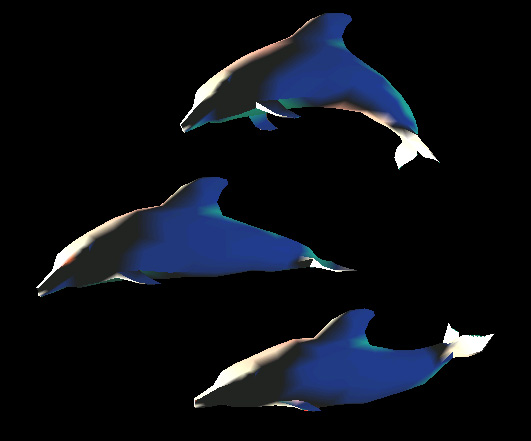
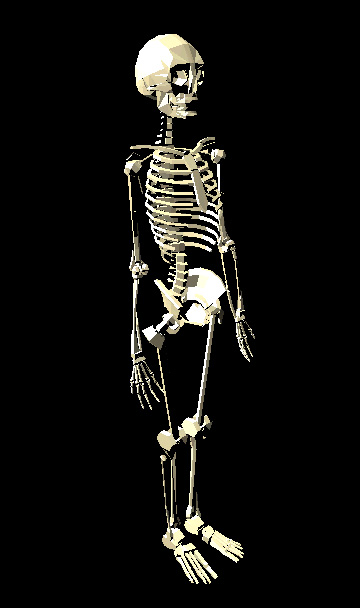
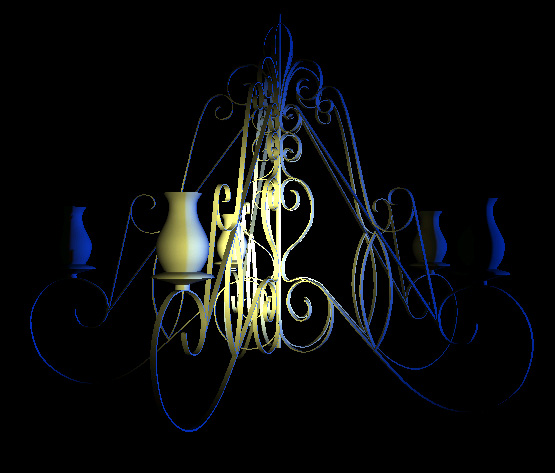
ModelViewer is an application I wrote using Java3D that loads 3D object models.
The user can move the viewpoint around and experiment with different fog and lighting effects.
Supported file types: (please note that 3D Studio files are the only ones that have been tested so far)
- 3D Studio - 3DS
- AutoCAD - DXF (Version 12)
- VRML 97 - WRL
- Protein Data Bank - PDB
- Digital Elevation Map - DEM
- Imagine - IOB
- TrueSpace - COB (Version 2)
- PLAY
- VTK ASCII
- VTK binary
- NFF
- Wavefront - OBJ (including material files for colours)
- Lightwave 3D Scene
ModelViewer uses the superb freely-available NCSA Portfolio library, which can be found at: http://www.ncsa.uiuc.edu/~srp/Java3D/portfolio/
Keyboard behaviour code is heavily based on the example code at http://www.j3d.org/utilities/keyboard.html written by Gary S. Moss and Andrew AJ Cain.
A large number of free 3D models are available on the web. For examples, visit: http://www.3dcafe.com/asp/meshes.asp
Download
Requirements:
- Windows, Linux or Solaris operating system (Apple does not support Java3D on OS X at the time of writing)
- Java Runtime Environment (JRE) 1.2 or above (available from http://java.sun.com/j2se/1.3/jre/)
- Latest version of Java3D Runtime (see 'Installing Java3D')
- A 3D-accelerator graphics card may improve performance, but is not a strict requirement.
Installing Java3D - [ensure you have a Java Runtime Environment (JRE) before proceeding with this step]
If you have Linux, go to http://www.blackdown.org/java-linux/jdk1.2-status/java-3d-status.html and follow the instructions there, then continue with this document.
Otherwise, you will need to install Java3D from Sun Microsystems. It is about 2.5Mb (and well worth it), and the installation process is very easy. Download Java3D (choose the RUNTIME version, and either DirectX or OpenGL, although OpenGL is preferred) from: http://java.sun.com/products/java-media/3D/download.html then run the installer.
Installing ModelViewer
Once Java3D is installed, download the ZIP file, uncompress it to a directory of your choice and run ModelViewer.bat, or type the following into your command-line:
java -cp %CLASSPATH%;ncsa\portfolio.jar ModelViewer
Download ModelViewer (ZIP file, 464Kb)
Three sample 3D Studio format models are included. You can download more models from http://www.3dcafe.com/asp/meshes.asp
Contact details are available in the modelviewer.conf configuration file, or find my email address at the bottom of this page.
Source Code
If you would like to view the source code, download this version instead of the one above:
Download ModelViewer plus source code (ZIP file, 469Kb)
Controls
The following keys are used to control the ModelViewer application:
| Forwards/backwards, rotate left/right | up/down, left/right cursor keys, respectively |
| Translate up/down, left/right | ALT + up/down, left/right cursor keys |
| Rotate up/down, anticlockwise/clockwise | CTRL + up/down, left/right cursor keys |
| Fast forwards/backwards, rotate left/right | SHIFT + up/down, left/right cursor keys |
| Load new model | L |
| Reset viewpoint | R |
| Toggle headlamp effect | H |
| Toggle fog proximity | F |
| Viewpoint-relative lighting effects | Z, X |
| Scene lighting effects | 1 - 4 |
| Ambient light level decrease/increase | O, P |
Notes
You sometimes have to move around a bit to find the object that you just loaded.
After loading a new model, you probably have to click on the ModelViewer window to make things work again. Sorry about that.
If you are having performance issues, resize the window to make it smaller, switch more lights off (no, not in your room, in ModelViewer) and experiment with the fog settings.
Sun's Java3D page: http://java.sun.com/products/java-media/3D/index.html
See www.j3d.org for more information on Java3D.